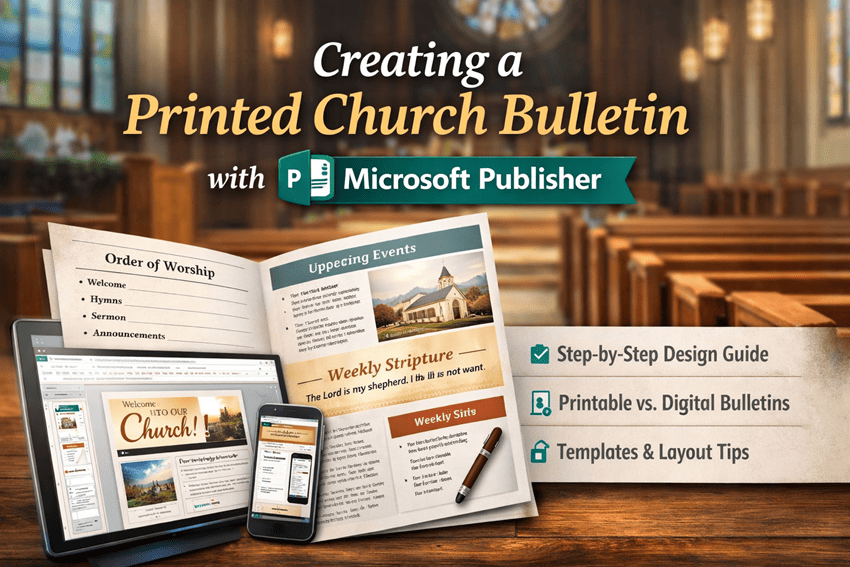
Imagine greeting your congregation on Sunday morning with a beautiful, easy-to-read bulletin in hand. In an age of emails and smartphone apps, the classic printed church bulletin is still a cherished tradition. It’s that tangible program or leaflet handed out before service – a friendly welcome, a guide to worship, and a source of news all in one. In this comprehensive guide, we’ll walk you through how to create an engaging printed church bulletin using Microsoft Publisher, step by step. Whether you’re a pastor, church admin, or volunteer, you’ll find these tips helpful for making bulletins that inform and inspire your congregation.
Why Church Bulletins Still Matter (Even in a Digital Age)
You might be wondering if printed bulletins are still relevant today. The answer for many churches is yes! While digital bulletins and screens are on the rise, a paper bulletin offers unique benefits:
- Tangible & Personal: A printed bulletin is something people can physically hold, jot notes on, or tuck into a Bible. For visitors and members alike, it can serve as a warm welcome and a keepsake (especially on special occasions like holidays or baptisms).
- Easy to Use: Not everyone (especially seniors or those without smartphones) will access a digital bulletin. A paper copy ensures everyone can follow along with the service and see the announcements, without any tech barriers.
- Community Feel: Handing out bulletins at the door gives greeters a chance to say hello and connect with attendees. It’s part of the Sunday morning routine that many find comforting and welcoming.
- Focus During Worship: During the service, a paper bulletin can be less distracting than a phone. It helps worshippers stay engaged with what’s happening without the temptation of notifications popping up.
Digital formats have their place (we’ll compare printed vs. digital later on), but the humble church bulletin remains a powerful communication tool that brings a personal touch to your services. Now, let’s get started on creating one!
Getting Started: Microsoft Publisher for Church Bulletins
Microsoft Publisher is a user-friendly desktop publishing tool that’s part of the Microsoft 365 (Office) suite. If you have a Microsoft 365 subscription (or the standalone Publisher software), you’re all set. If not, you might consider trying it out – it’s designed for creating things like newsletters, brochures, and bulletins with ease. (Many churches already use Microsoft 365 for Word, Excel, etc., and Publisher is included in certain plans.)
Why use Publisher instead of Word? Publisher offers more flexibility with layout. You can freely place text boxes, images, and shapes on the page without worrying about the text reflowing unexpectedly. It’s perfect for designing a bulletin with columns, decorative elements, and multiple pages. Don’t worry if you’re new to it – Publisher comes with templates and a familiar Office-like interface that will make the process straightforward.
Before you begin, take a moment to gather the content for your bulletin:
- Church name, logo, and contact information.
- The order of worship/service (list of songs, prayers, sermon title, etc.).
- Announcements or upcoming events details.
- Any special sections (e.g., a Bible verse, weekly devotional thought, or thank-you notes).
- Date of the service and possibly the sermon series title or theme.
Having this information ready will make it easier to plug into a template. Now, let’s move into the step-by-step instructions.
Step-by-Step: Creating a Church Bulletin in Microsoft Publisher
Creating your bulletin will be a breeze if you follow these steps. We’ll go from selecting a template all the way to printing your finished bulletins:
1- Open Microsoft Publisher and Choose a Template
Launch Publisher on your computer. On the start screen, you’ll see an array of template options. You can use the search bar to find templates; try searching for “Newsletter”, “Brochure”, or “Program”. While there might not be a template labeled specifically “church bulletin,” newsletter or brochure templates work perfectly (a church bulletin is essentially a small newsletter or program). Select a template design that appeals to you – you can always change colors and pictures later. (Screenshot: Publisher’s template selection screen showing available newsletter templates.)
If you prefer to start from scratch, you can choose a Blank publication. For a typical bulletin, select a blank Letter (8.5″ x 11″) size. Don’t worry – you can still create a folded booklet or multiple pages with a blank canvas, it just requires a bit more manual setup which we’ll cover next.
2- Set Up Your Page Layout
Once your template (or blank file) is open, set up the page layout to suit a bulletin. Decide whether you’ll have a single-page bulletin or a folded booklet:
- For a simple one-page (front and back) bulletin: You’ll need two pages in your document (one for the front, one for the back). In Publisher, you can insert a second page via Insert > Page if the template didn’t include it. Ensure the orientation is Portrait (tall) unless you intentionally want landscape.
- For a folded “booklet” style bulletin: Many churches use one letter-size sheet folded in half, giving four smaller pages (front cover, two inside pages, back cover). To set this up, you can use a two-page spread option. If you chose a newsletter template, it may already be formatted as a 4-page spread. If not, go to Page Design > Page Setup, and look for options like “Booklet” or Two-page spread. This will let you design facing pages that will print correctly for folding.
- Check your margins and page size under Page Design > Margins. It’s usually safe to use the default margins (around 0.5″) so nothing important gets cut off when printing. If your printer can’t do edge-to-edge printing, avoid putting text too close to the edges.
Take a moment to save your file (e.g., “ChurchBulletin_Jan2026.pub”) so you don’t lose any progress. Publisher can also auto-save if you’re on OneDrive with Microsoft 365 – a handy feature in case of interruptions.
3- Add Your Church Information and Title
Now it’s time to personalize the bulletin. On the front page (cover) of your bulletin, add the key details:
- Church Name & Logo: Click on any placeholder text box in the template and type your church’s name. You can adjust the font size and style in the top toolbar. If you have a church logo or a relevant image for the cover, insert it via Insert > Pictures. Resize and position the logo as needed (Publisher lets you drag to move images and use guides to align them neatly).
- Service Date or Title: Include the date of the service (e.g., Sunday, January 10, 2026), and perhaps a title for the bulletin like “Morning Worship” or a specific sermon series name. This usually goes on the front cover underneath the church name. Make sure this text is clear and stands out – you might use a slightly larger font or italics for emphasis.
- Welcome Message (Optional): Many churches like to have a short welcome phrase on the cover, such as “Welcome to [Church Name]! We’re glad you’re here.” This sets a friendly tone. You can add a new text box for this by clicking Insert > Draw Text Box, then typing your message. (Screenshot: Example of a bulletin cover layout in Publisher with church name and date.)
Tip: Publisher has a feature called Business Information where you can store your organization’s address, phone, website, etc. If you set that up (under File > Info > Edit Business Information), you can easily drag-and-drop those details into your bulletin without retyping every time. This is handy if your bulletin template includes contact info on the front or back page.
4- Include the Order of Worship
The heart of any church bulletin is the order of service (also called the order of worship). This is usually one of the first things people look for when they sit down. To add it:
- Locate or Create the Section: In your template, there may be a section already labeled “Contents” or “Inside,” etc. If a newsletter template has multiple columns, you might repurpose one column for the order of worship. If starting blank, create a text box on the inside page (or page 1 if it’s a single sheet) titled “Order of Worship” or “Today’s Service.”
- List the Service Elements: Type out the sequence of the service. This often includes items like: Welcome, Opening Prayer, Hymn or Worship Song titles, Scripture Reading, Sermon (with title), Offering, Closing Song, and Benediction, etc. Use a clear format – you could make the item titles bold, or use a bullet/number list. For example: Welcome & Announcements – Pastor John Doe
Opening Hymn: “Amazing Grace” (Congregation)
Prayer – Led by Jane Smith
Sermon: “Finding Hope” – Rev. John Doe
…and so on.
- Formatting: Keep the font readable. Many churches use a font size around 12–14 pt for this list so everyone can see it. You might use a slightly larger or stylized font for section headings like “Order of Worship” to differentiate them. Publisher allows you to change fonts and sizes in the toolbar; stick to easy-to-read fonts (more on design tips later).
- (Screenshot: Inside page showing the Order of Worship text in a two-column layout.)
5- Add Announcements and Other Sections
Apart from the service outline, your bulletin should include sections for news and resources:
- Announcements/Upcoming Events: Create a section for church announcements. This can be on an inside page or the back page. Use bullet points or a simple list format for each announcement to keep them concise. Include key details like event name, date, time, and location. For example: “Youth Group Movie Night – Friday, Jan 15 at 7 PM in Fellowship Hall.” Limit each announcement to a couple of lines so it’s easy to scan.
- Weekly Scripture or Inspiration: Many bulletins feature a short Bible verse, a quote, or a brief devotional thought. You might place this in a sidebar or a highlighted text box. It adds spiritual encouragement and can fill small empty spaces nicely. For instance, you could have a quote in italics: “Trust in the Lord with all your heart…” – Proverbs 3:5.
- Prayer Requests or Thank You’s: If it’s common in your congregation, include a section for prayer requests, recent blessings, or volunteer thank-yous. This fosters community by acknowledging needs and gratitude.
- Staff & Contact Info: It’s wise to list the church’s contact details somewhere (often on the back page or bottom of the front page). Include the church address, phone, email, website, and perhaps the pastor’s name. This helps newcomers know how to reach out or learn more. You can also list service times (like “Sunday Worship at 10 AM, Wednesday Bible Study at 7 PM”).
- Optional Extras: Some churches add a brief “About Us” or a small welcome note for first-time visitors (e.g., “If you’re new here, please fill out a welcome card and join us for coffee after service!”). You can also mention upcoming key dates (like holiday services) well in advance to keep folks informed.
Arrange these sections in your bulletin in a logical flow. For example, in a folded 4-page bulletin: front cover (welcome/title), inside left (order of worship), inside right (announcements or other content), back page (contacts & closing info). In a single 2-sided page, you might have the order of service on the front side and announcements on the back side. Adjust the template layout as needed by moving or resizing text boxes. Publisher makes it easy to drag sections around or change column settings if you need more space. Remember, white space is your friend – don’t cram every inch with text; a cleaner layout is more inviting to read.
6- Insert Images or Graphics for Visual Appeal
A well-placed image can make your bulletin more attractive and engaging:
- Church Logo: As mentioned, include your logo on the cover or header if you have one. It reinforces your branding.
- Photos: You might insert a small photo relevant to an announcement or a generic uplifting image. For example, if you’re announcing a church picnic, a small photo from last year’s picnic could be nice. Be mindful of size – images in a bulletin are usually kept small to conserve space (and color ink if printing in color).
- Clipart or Icons: If you don’t have photos, simple icons or graphics can break up text. Publisher has an Insert > Icons feature where you can find basic symbols (like a cross, musical note, etc.), or you can use relevant clipart from safe sources. For instance, a tiny calendar icon next to event dates, or a musical note next to a hymn, adds a visual cue.
- Design Elements: Templates often come with design elements (lines, shapes, color blocks). Feel free to tweak these or add your own. For example, a horizontal line can separate sections nicely. Use the Shapes tool to draw lines or boxes for emphasis.
- (Screenshot: A sample bulletin page with an image inserted and text wrapped around it.)
Note: When adding images in Publisher, use Insert > Pictures rather than copy-pasting from elsewhere. This ensures the image is properly embedded in your file and won’t go missing. Also, high-resolution images print best. If your bulletin will be printed in black and white (common for many churches to save cost), consider converting your images to grayscale or using line art style graphics, so they still look good without color.
7- Review, Save, and Proofread
Before we hit the print button, it’s crucial to review everything:
- Check the Layout: Use Publisher’s preview or just zoom out to see the whole page. Are all the sections aligned neatly? Do the margins look ok? Make sure nothing important is too close to the edge or accidentally cut off. If you have multiple pages, ensure the flow (for a folded bulletin, page 2 and 3 should be the inside spread, etc.).
- Consistency: Ensure fonts and sizes are consistent for similar sections. Headings should have a uniform style, and body text should be the same size throughout, unless there’s a deliberate reason for difference. Consistency makes the bulletin look professional and easy to read.
- Spelling & Grammar: Run a spell check (Review > Spelling in Publisher) and read through the bulletin text carefully. It’s amazing how a small typo can slip through – and once printed, it can be hard to ignore. Check service details (did you list the correct hymn numbers or scripture reference?). It often helps to have another person proofread it as well, since a fresh eye catches mistakes you might overlook.
- Test Print Preview: Go to File > Print and look at the preview. This shows how it will print on the page. Verify that page 1 (front) and page 2 (back) are correct, or if you have four pages, that the pairing is correct for folding. If something looks off, now’s the time to adjust it. (Screenshot: Print preview showing a two-sided bulletin ready to print.)
- Finally, save your work! Keep a copy of the Publisher file so you can update it next week without starting from scratch. You may also want to Save As PDF (File > Save As > PDF) – PDFs are useful if you plan to email the bulletin or print it at a professional printer.
8- Print Your Bulletin
With everything looking good, you’re ready to print:
- Printing In-House: Most small churches print their bulletins on a standard office printer or copier. Use good quality paper (a slightly heavier paper like 24 lb or 28 lb bond can give a nicer feel than basic copier paper, but use what fits your budget). If your bulletin is front-and-back on one sheet, you can print double-sided. In the print settings, select Print on Both Sides (and choose the flip on long edge option for a portrait booklet). If your printer doesn’t auto-duplex, print all the odd pages first, then flip the paper and print the even pages on the back.
- Test First: It’s wise to do a test print of one copy. Check that everything aligns and faces the right direction, especially for folded bulletins. Make sure page 1 is aligning with page 4 (the back cover) correctly, etc. If the text is coming out too close to the edge or something is off-center, you might adjust margins or centering in Publisher and test again.
- Print Quantity: Once you’re satisfied, go ahead and print the number of copies you need. Print a few extra for visitors or last-minute needs. It’s easier to recycle a couple unused bulletins than to run short and have someone go without.
- Folding and Finishing: If you have a folded bulletin, fold each sheet neatly in half. Enlist volunteers or staff to help fold if you have a lot – it can be a fun group task (some churches do this on Friday or Saturday in the office). For single-page (front/back) bulletins, no folding needed – they’re ready to hand out.
- Professional Printing: If you have a large congregation or want top-notch quality (glossy paper, color prints), you might use a local print shop. In that case, providing them a PDF of the bulletin is usually best. They can handle the double-sided printing and trimming if needed. This is more costly, so most smaller churches stick to in-house printing except for special occasions.
Congrats – your bulletin is now printed and in hand, ready to guide your worship service attendees!
Design Tips for an Engaging Bulletin
Designing a bulletin is not just about the content; how you present that content makes a big difference. You don’t need to be a graphic designer to make a clean, attractive bulletin. Here are some friendly design tips to keep in mind:
- Keep It Clean and Organized: Avoid a cluttered look by giving each section some breathing room. Use headings or bold titles for sections like “Order of Worship,” “Announcements,” etc., so readers can quickly find what they need. Consistency is key – place recurring sections in the same area each week if possible. For example, if announcements are always on the back page, people will know where to look over time.
- Choose Reader-Friendly Fonts: Pick easy-to-read fonts for the main text. Sans-serif fonts (like Arial, Calibri, or Verdana) are clean and great for readability, especially at smaller sizes. Serif fonts (like Times New Roman or Georgia) can add a traditional touch for titles or scripture quotes, but don’t use overly fancy cursive fonts for big blocks of text. Keep body text at a comfortable size – usually 12 pt or larger so that even older members can read without strain. Use larger font (14-16+ pt) for section headings and the church name. Limit yourself to 2 fonts (one for headings, one for body text) to maintain a cohesive look.
- Use Color Wisely: A pop of color can make your bulletin lively, but it’s easy to overdo it. If printing in color, stick to a simple color scheme that matches your church’s branding or the season (for instance, shades of blue for winter, or liturgical colors if that’s relevant). Make sure text has high contrast with the background – typically black or dark text on a white/light background is easiest to read. If printing in black and white, ensure any colored text or images still look distinct when converted to grayscale.
- Include Essential Information (and Trim the Extras): Focus on the information that truly serves the congregation during worship and the week ahead. It’s better to have a concise bulletin that people actually read, rather than a 8-page booklet no one has time to finish. Include the key sections we discussed (order of service, announcements, contacts). If you have extra space, you can add a short devotional or note, but if you find yourself trying to fill every corner with clipart or long articles, consider saving some content for your website or an email newsletter instead.
- Visual Balance: Mix text with a few visual elements so your bulletin isn’t a wall of text. This could be as simple as a church logo, a border, or an image for a special event. Align elements neatly – Publisher’s alignment guides will help with this. Try to balance the pages (for a folded bulletin, the two inside pages should both have a pleasing layout, not one jam-packed and the other mostly empty). Embrace whitespace margins as part of the design; it actually makes your bulletin look more professional and readable.
- Accessibility: Think about your audience. If your church has many seniors, err on the side of larger text and high contrast. If you have multi-lingual services, you might need sections in different languages (make sure to clearly label sections for each language or have separate versions of the bulletin). Accessibility is also about word choice – use clear, simple language and avoid too many insider acronyms or terms without explanation (remember a visitor might not know that “Narthex” means lobby, for example).
- Templates and Consistency: Once you’ve designed a bulletin layout you like, save it as a template for future weeks. That way, you can open the template next time and just swap out the dates, songs, announcements, etc., without redesigning from scratch every time. Consistency week to week (in look and layout) also helps the congregation feel familiar with the bulletin. Of course, you can refresh the design occasionally (seasonal themes or a mid-year update to the style), but a core template saves time and keeps things uniform.
- Proofread and Double-Check: It was mentioned before, but it bears repeating – always proofread your bulletin. Design-wise, one trick is to print out a copy and look at it in print form, because sometimes you’ll spot issues on paper that you missed on the screen. Make sure dates and times are correct (nothing worse than announcing an event for the wrong date!), and all hyperlinks or QR codes (if included) are functional.
By following these design tips, you’ll create a bulletin that not only contains good information but also looks inviting to read. A well-designed bulletin reflects the care and warmth of your church community.
Printed vs. Digital Bulletins: Which Should You Use?
Now that you have your printed bulletin looking great, you might wonder about digital alternatives. Many churches today supplement or even replace paper bulletins with digital versions (like PDF bulletins, email newsletters, or church app notifications). Both printed and digital bulletins have their advantages, and it doesn’t have to be either/or – you can do both. Here’s a quick comparison to help you decide what’s best for your congregation:
Printed Bulletins – Pros:
- Immediate and tangible – everyone walking in gets the information handed to them. No need for devices or internet.
- Easier for certain groups, like elderly members or visitors who might not be on the church email list or app yet.
- Serves as a physical reminder; folks might take it home, stick it on the fridge, or use it for notes during the sermon.
- Allows for personal touches (pen notes, handing it personally with a smile, etc.) that can enhance fellowship.
Printed Bulletins – Cons:
- Requires printing which means paper and ink costs, as well as time to print and fold.
- Leftover bulletins often go to waste/recycling each week.
- Information is static – if an event changes last-minute, the printed bulletin can’t be updated once it’s distributed.
Digital Bulletins – Pros:
- Cost-effective and eco-friendly – no printing costs or paper waste. This is a big plus for tight budgets and creation care.
- Easy to distribute widely: you can email the bulletin PDF to the whole church, post it on your website, or use a church app. Great for reaching those who aren’t physically present.
- Interactive potential: digital bulletins can include hyperlinks (to sign-up forms, online giving, event RSVPs) or even multimedia if using an app.
- Instant updates: If something changes, you can send an updated version or a quick follow-up message without reprinting anything.
Digital Bulletins – Cons:
- Not everyone will read them. Emails get overlooked, apps require people to actively check them.
- They rely on technology – if someone isn’t tech-savvy or doesn’t own a device, they miss out. Also, reading on a small phone screen isn’t as comfortable for everyone.
- Less personal in-hand presence. People might feel something is missing when they don’t receive a physical bulletin at the door. It can also be tricky for people to follow along on their phones during service, especially if your church discourages phone use in worship.
- Initial setup: you’ll need to have a system for creating and sending digital bulletins (which could be as simple as emailing a PDF, or as involved as a custom church app).
When to use which? You might find a hybrid approach works best. For example, continue printing bulletins for Sunday services, but also share a PDF version via email for those who prefer digital or who missed the service. Alternatively, some churches have moved to mostly digital to save resources, but print a small number of paper bulletins for those who need them. Consider polling your congregation or observing their preferences. The key is to communicate effectively – whether on paper or screen – so people stay informed and connected.
Remember, the goal is the same: to inform, welcome, and engage your church family. So choose the medium (or mix of media) that best accomplishes that goal for you. For this article, we focused on printed bulletins, but you can easily repurpose the content you create in Publisher for online use too (for instance, by exporting it as an image or PDF to email out).
Wrapping Up: Ready to Create Your Bulletin?
Creating a printed church bulletin with Microsoft Publisher is totally achievable – and even fun – once you know the steps. You’ve learned how to pick a template, organize your service details, add some design flair, and print a bulletin you can be proud of. Your congregation will surely appreciate the effort, as a well-crafted bulletin helps everyone feel informed and included in the worship experience.
As a next step, why not give Publisher a try for your next service? Open up Publisher, experiment with a template or two, and start plugging in your church’s information. You can always save a draft and tweak it as you gather feedback. If you’re new to Microsoft 365 or Publisher, consider using Microsoft’s free trial or checking if your church’s Office subscription includes it – it’s a handy tool to have in your toolbox. And don’t forget about the many templates and resources available: Microsoft’s online template library and various church resource websites offer pre-made bulletin designs that you can download and customize. These can jump-start your design or give you fresh layout ideas (for example, templates for a more graphic cover, or a tear-off section for visitor info).
Finally, keep the creative momentum going. Each week is an opportunity to refine your bulletin and make it even better. Maybe you’ll try a new cover image next time, or add a QR code linking to your church’s online newsletter. Stay open to feedback from your congregation – they might have great suggestions, like including a calendar for the month or printing a large-print version for those who need it.
Ready to craft a bulletin that both informs and inspires? Fire up Microsoft Publisher and give it a go! With the tips and steps provided above, you have all the tools to create a polished church bulletin that reflects the heart of your church. Happy bulletin-making! And as you create, feel free to explore more church communication tools and ideas – from digital newsletters to social media – to keep building that connected, informed church community. God bless, and good luck with your next bulletin!